Change the Root Password
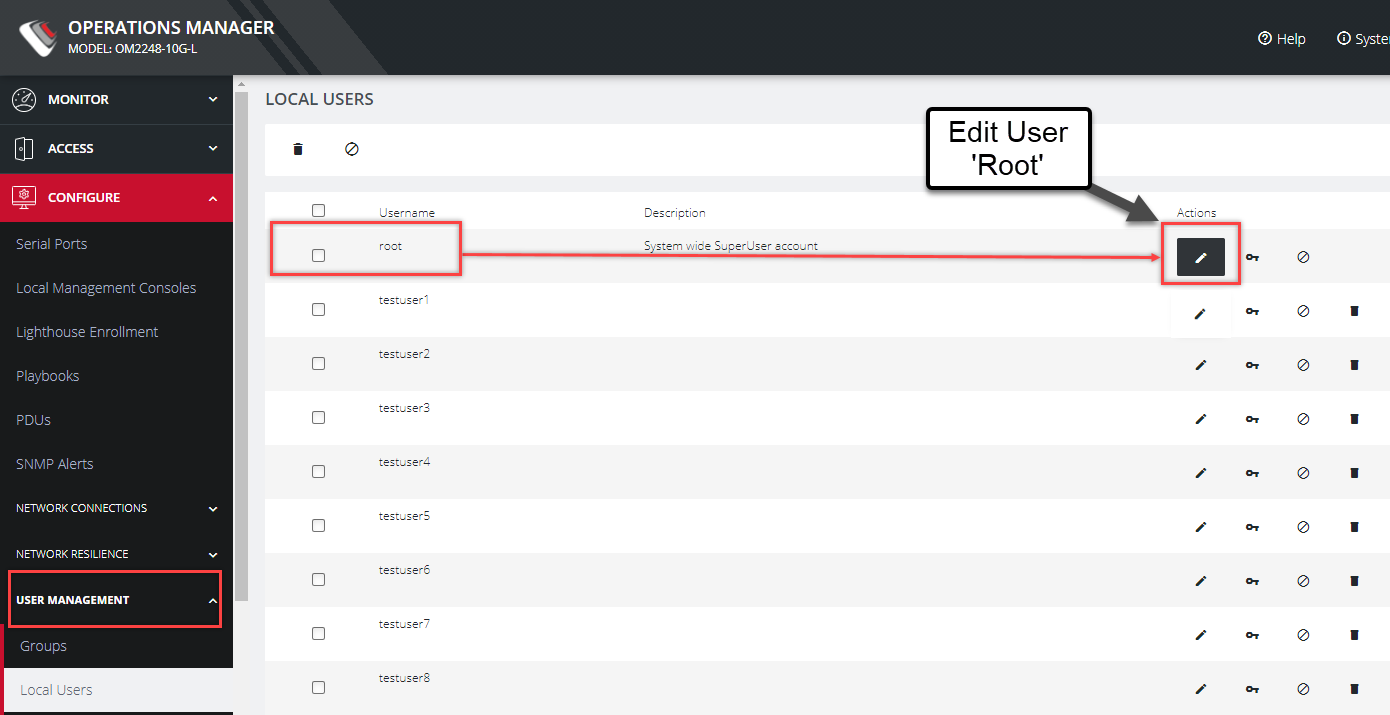
CONFIGURE > User Management > Local Users > Edit User
For security reasons, only the root user can initially log into the appliance. Upon initial log in the default password must be changed.
Tip: Other Users' passwords may be changed using the same procedure by selecting the User's account name under the Username heading.
To change the password at any time:
-
Navigate to CONFIGURE > User Management > Local Users
-
Click the Root user's Edit User icon below the Actions heading.
-
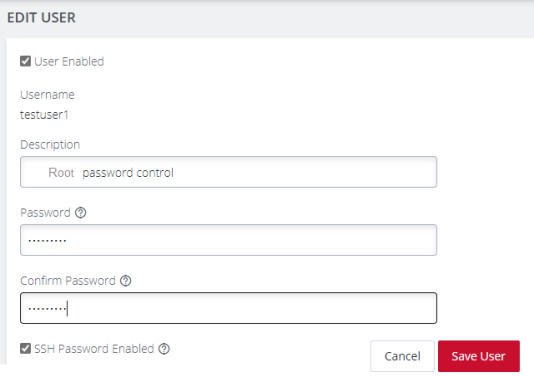
In the Edit User page, if required, enter an optional description in the Description field. Enter a new password in the Password field and re-enter the password in the Confirm Password field.
-
Click Save User. A green banner confirms the password change has been saved.