Default Settings
The OPERATIONS MANAGER comes configured with a default static IP Address of 192.168.0.1 Subnet Mask 255.255.255.0.
The OM offers a WebGUI via web browser that supports HTML5.
-
Type https://192.168.0.1 in the address bar. HTTPS is enabled by default.
-
Enter the default username and password
Username: root
Password: default
-
After the first successful log-in you will be required to change the root password.
-
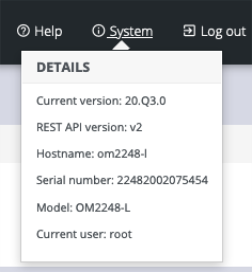
After log-in, the WebGUI is available. Check system details
-
After log-in the WebGUI is available. Check system details in the top right-hand side of the WebGUI.
-
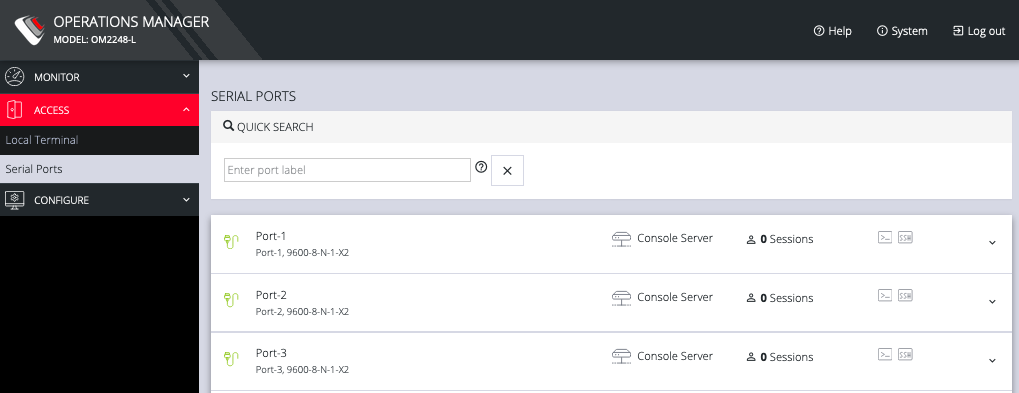
In the Navigation Bar on the left side, navigate to the ACCESS > Serial Ports page. The Serial Ports page displays a list of all the serial devices, including the links to a Web Terminal or SSH connection for each.
Using the WebUI
The WebUI can switched between Light or Dark mode by adjusting the toggle on the bottom left.

Light mode changes the user interface to display mostly light colors. This is the default UI setting. Dark mode changes the user interface to display mostly dark colors, reducing the light emitted by device screens.
The WebUI has three menu options on the upper right: Help, System, and Log out.
The Help menu contains a link to generate a Technical Support Reportt that can be used by Opengear Support for troubleshooting. It also contains a link to the latest Operations Manager User Manual.
The System menu presents the Current version, REST API version, Hostname, Serial Number, Model, and Current user.