Firewall Management
CONFIGURE > FIREWALL > Management
To change firewall management settings navigate to CONFIGURE > FIREWALL > Management.
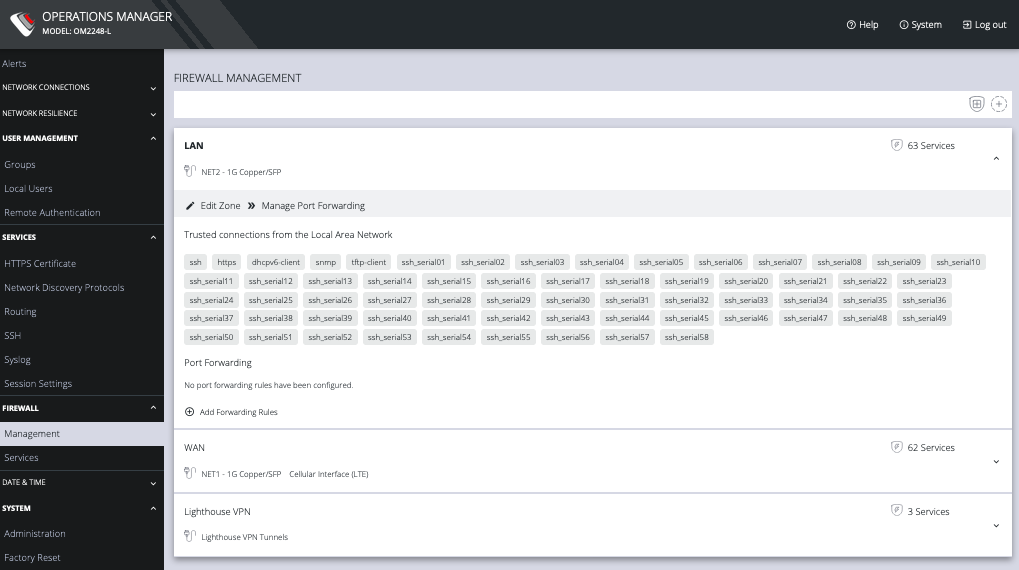
You can expand each zone by clicking the Expand arrow on the right. Once expanded, you can click Edit Zone to change settings for a particular zone.
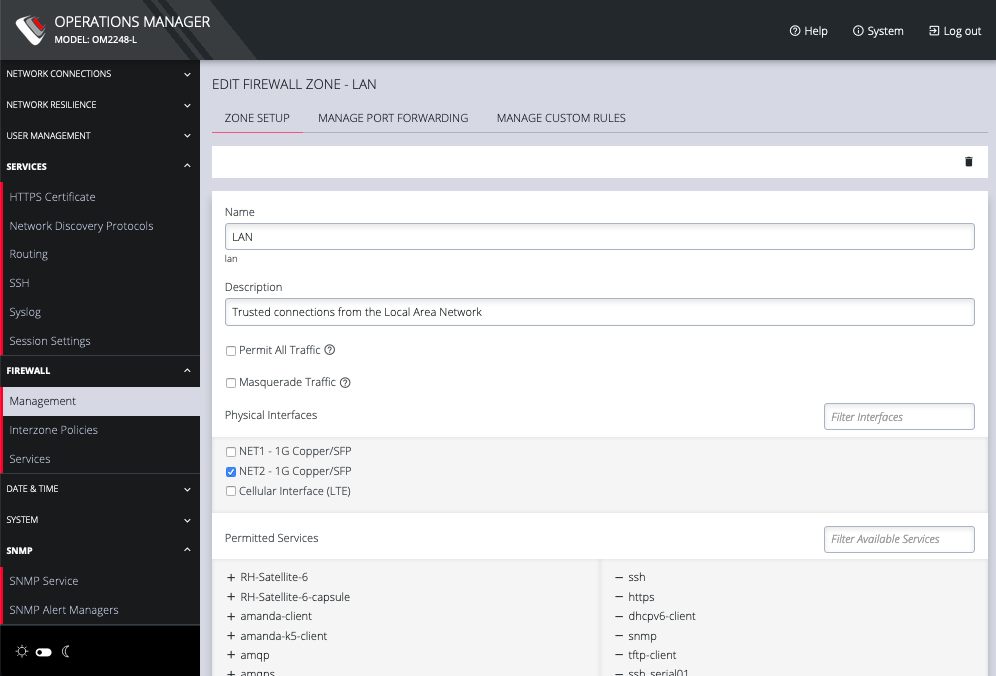
The Edit Zone page has three tabs. The ZONE SETUP page allows you to:
-
Modify the Name of the zone
-
Add a Description for this zone
-
Permit all Traffic
-
Masquerade Traffic
-
Select Physical Interfaces
-
Manage Permitted Services by clicking on Plus or Minus next to each
Note: You can use the Filter Interfaces and Filter Available Services text boxes to navigate through the lists.
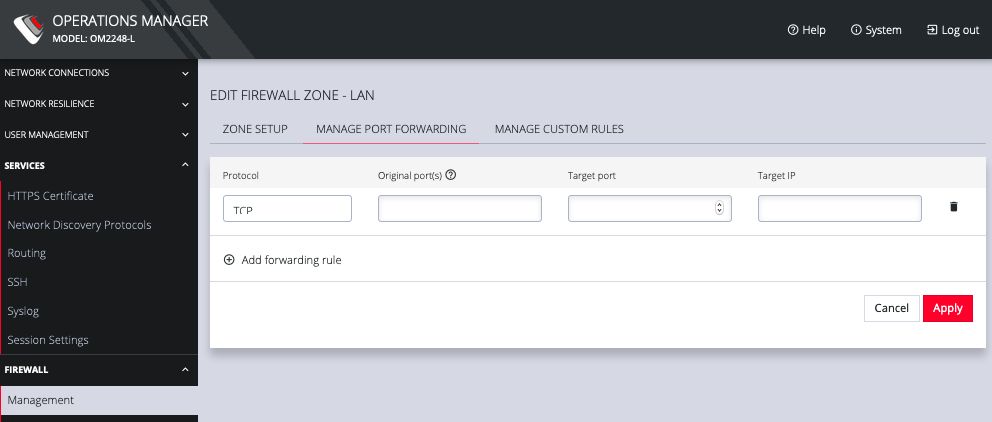
The MANAGE PORT FORWARDING tab allows you to add, edit, and delete forwarding rules for the particular zone you are editing.
The third tab, MANAGE CUSTOM RULES, allows you to add, edit , and delete custom firewall rules for the zone you are editing. These custom rules continue to exist after reboots, upgrades, and power cycles.
These rules are prioritized by the order they are added.
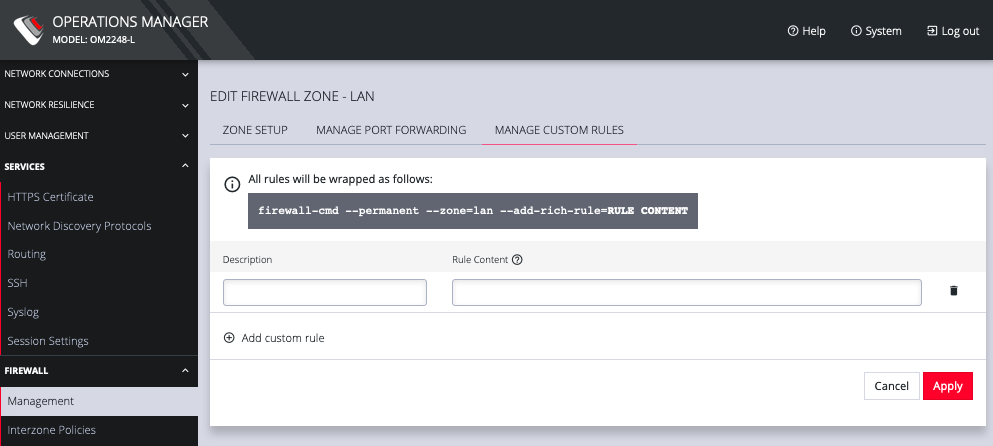
To add a new custom rule:
- Click Add custom rule.
- Enter a Description for this rule.
- Enter Rule Content, custom rule content formatted with firewall-cmd syntax.
- Click Apply.
All rules will be wrapped as follows:
firewall-cmd --permanent --zone=lan --add-rich-rule=RULE CONTENT
Additional menu options under CONFIGURE > FIREWALL are Rules, Services, and Zones.
The mainFIREWALL MANAGEMENT page also contains quick links to Add Firewall Service (shield icon on upper right), Add Firewall Zone (plus icon on upper right), and Edit Zones pages (pencil icon in expanded view) for the currently selected zone.
Manage Firewall Rules
Click CONFIGURE > FIREWALL > Services. This opens the SERVICES page with a list of all firewall rules.
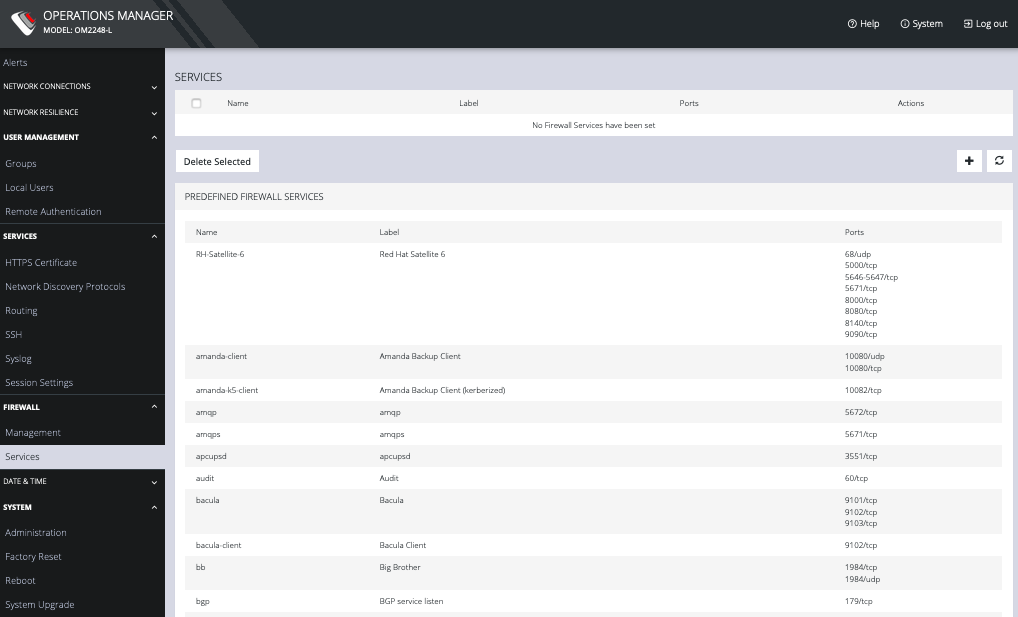
Services can be added, deleted, or edited from this page. Scroll to the bottom of the page to access the Plus button to add a new service.
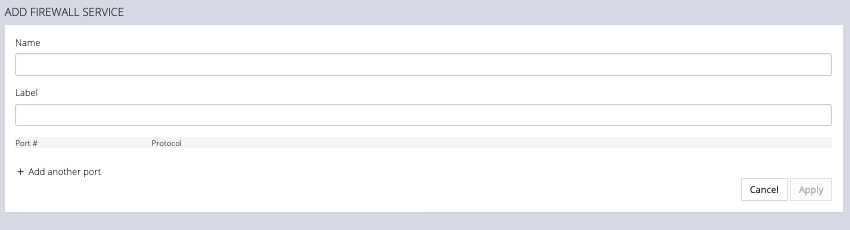
Enter a Service description and a Zone for the new rule.
Manage Firewall Zones
Click CONFIGURE > FIREWALL > MANAGEMENT.
This opens the ZONES page with a list of all firewall zones.
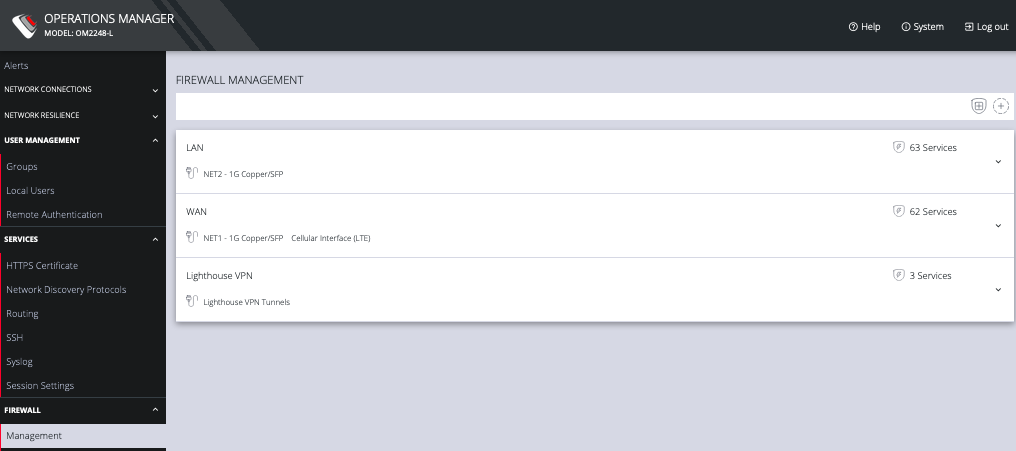
Zones can be added, deleted, or edited from this page. Click the PLUS symbol on the top right of the page to add a new zone.
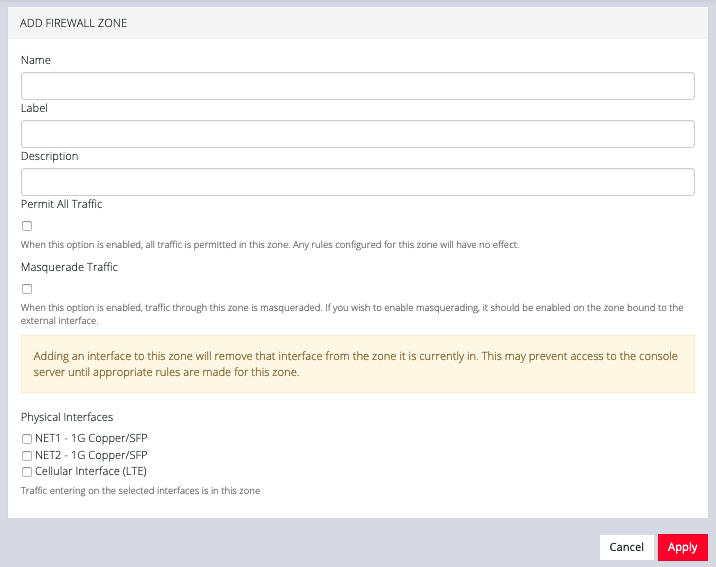
The NEW FIREWALL ZONE page allows you to:
-
Name the zone
-
Add a Description for this zone
-
Permit all Traffic
-
Masquerade Traffic
-
Select Physical Interfaces