Local Users
CONFIGURE > USER MANAGEMENT > Local Users
To create a new user:
-
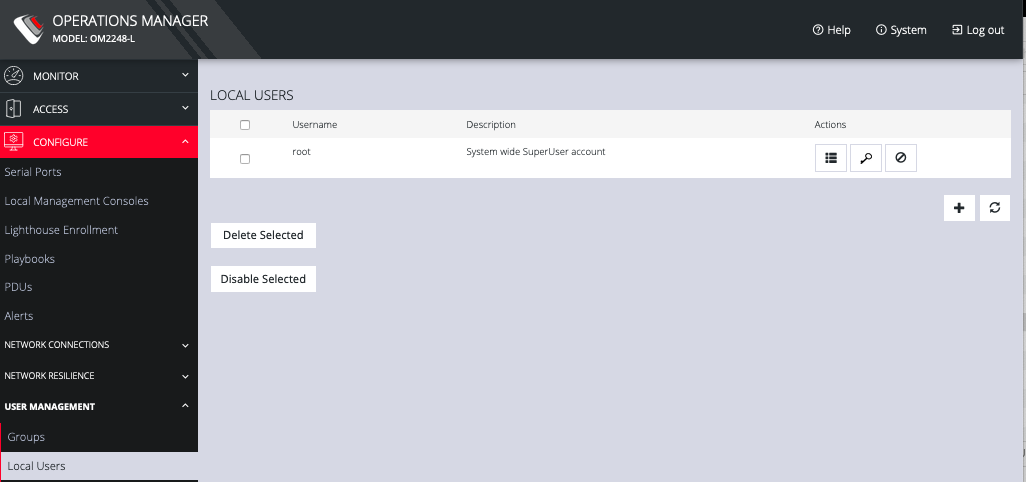
Navigate to the CONFIGURE > USER MANAGEMENT > Local Users tab.
-
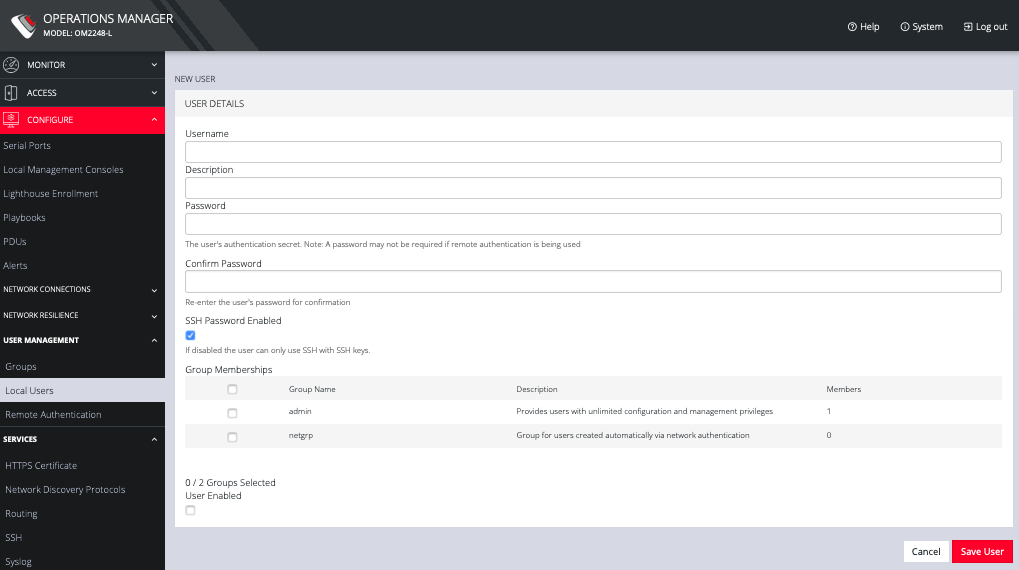
Click the + button. The New User dialog appears.
-
Enter a Username, Description, and Password.
-
Re-enter the Password in the Confirm Password field.
-
Select the Enabled checkbox.
-
Click Apply.
To create a new user without password which causes them to fall back to remote authentication:
-
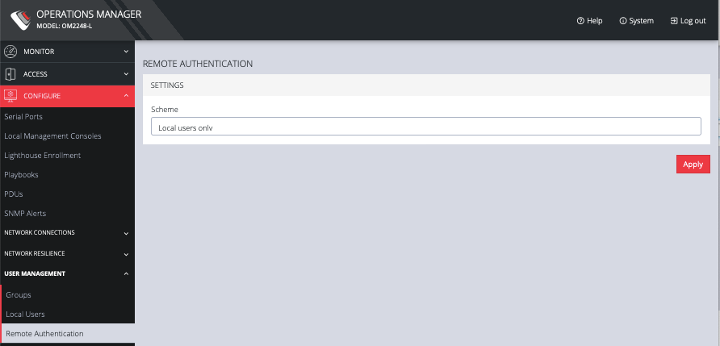
Select CONFIGURE > User Management > Remote Authentication
-
Select a Scheme.
-
Enter Settings and click Apply.
-
Select CONFIGURE > USER MANAGEMENT > Local Users
-
Click the + button. The New User dialog loads.
-
Enter a Username, Description.
-
Select the Remote PasswordOnly checkbox.
-
Select the Enabled checkbox.
-
Click Apply.
To modify an existing user:
-
Select CONFIGURE > USER MANAGEMENT > Local Users
-
Click the Edit User button in the Actions section next to the user to be modified and make desired changes.
-
Click Save User.
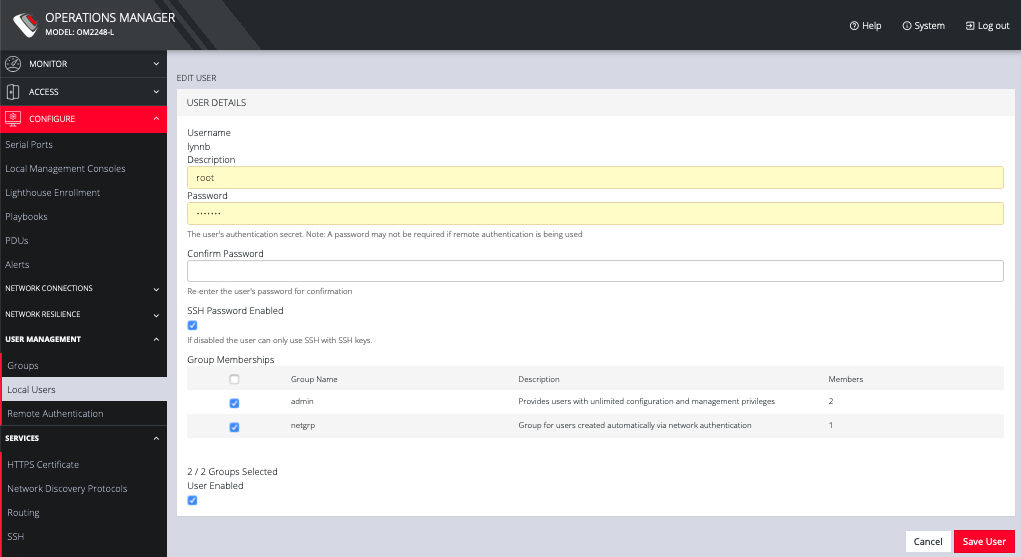
The Edit Users dialog allows the user’s Description to be changed, Group Memberships modified, and the user’s Password to be reset. The username cannot be changed. To disable a user, uncheck the Enabled checkbox.
Disabled users cannot log in to the OPERATIONS MANAGER using either the Web-based interface or via shell-based logins.
To manage SSH authorized keys for a user:
-
Select CONFIGURE > USER MANAGEMENT > Local Users
-
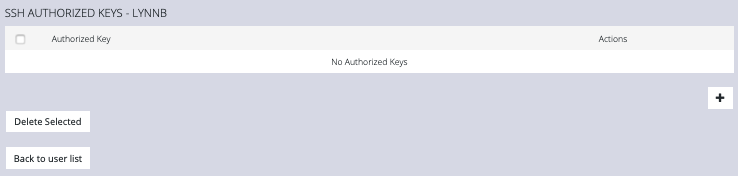
Click the Manage SSH Authorized Keys button in the Actions section next to the user.
-
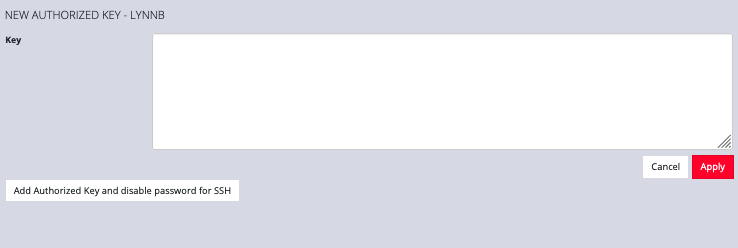
Click the Plus button to add a new key. This opens the NEW AUTHORIZED KEY page for this user.
-
Enter the key and click Apply. You can also click on Add Authorized Key and disable password for SSH for this user from this page.
-
To delete a key, click CONFIGURE > USER MANAGEMENT > Local Users and click the Authorized Key button for the user.
-
Click the Delete button next to the key you wish to remove.
To delete a user:
-
Select CONFIGURE > USER MANAGEMENT > Local Users
-
Click the Delete User button in the Actions section next to the user to be deleted.
-
Click Yes in the Confirmation dialog.