SNMP Alerts System - Temperature, Authentication, Configuration
Temperature
CONFIGURE > SNMP Alerts > System > System Temperature
It is essential to ensure that the system is operating within its design temperature as premature aging of the component can occur if the device is excessively hot during operation. This can lead to component failure and ultimately result in RMA.
When temperature SNMP alerts are enabled (Alerting), network operators are immediately notified (subject to network connectivity and latency) should the PSU begin operating outside user-defined temperature tolerances.
System generated SNMP Alerts send SNMP traps to a remote SNMP manager which alerts the user of temperature events.
Tip: The OM device can send network, power and system events to the remote SNMP manager.
Configure SNMP System Temperature Alerts
Configure > SNMP Alerts > System > System Temperature
The System Temperature Range alert reports the system temperature (measured at System Temperature 1 and System Temperature 2 sensors) and sends an alert when the system temperature leaves or enters the user-configured temperature range.
-
Navigate to Configure > SNMP Alerts > System > System Temperature.
-
Click on the Alerting button to activate the function, this also activates the user-defined range sliders.
Note: The Not Alerting button de-activates the function and temperature alerts will be stopped until activated again.
-
Click+Drag the temperature range limiters to the required upper and lower limits.
-
Click Apply. The Details Saved banner confirms your settings.
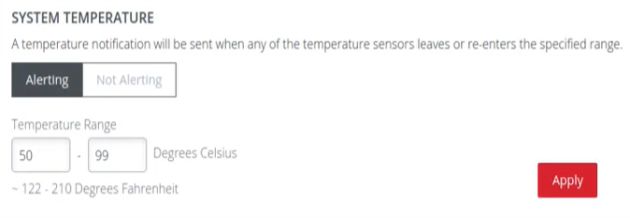
In this image, if any temperature sensor reports the system temperature (measured at System Temperature 1 and System Temperature 2 sensors) to be less than 50 degrees C or greater than 99 degrees C, an SNMP alert will be triggered.
Tip: The temperature display is automatically converted to Fahrenheit.
Authentication
CONFIGURE > SNMP Alerts > System > Authentication
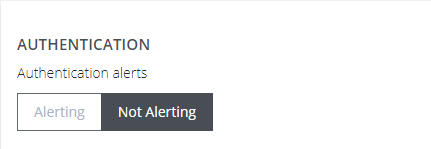
Notifies when a user attempts to log in via SSH, REST API, or the device's serial ports. An alert is sent regardless of whether the log in has succeeded or failed.
-
Navigate to Configure > SNMP Alerts > System > Authentication.
-
Click on the Alerting button to activate the function.
-
Click Apply. The Details Saved banner confirms your settings.
Configuration
CONFIGURE > SNMP Alerts > System > Configuration
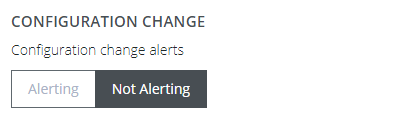
Notifies of changes that occur to the system configuration.
-
Navigate to Configure > SNMP Alerts > System > Configuration.
-
Click on the Alerting button to activate the function.
-
Click Apply. The Details Saved banner confirms your settings.