System
CONFIGURE > SYSTEM
The CONFIGURE > SYSTEM menu lets you change the OPERATIONS MANAGER hostname, perform system upgrades, and reset the system.
You can perform a system upgrade when new firmware is released. After specifying the location of the firmware and beginning the process, the system will unavailable for several minutes and then reboot. Unlike a factory reset, users, and other configuration data is maintained.
To perform a system upgrade:
-
Navigate to CONFIGURE > System > System Upgrade.
-
Select the Upgrade Method, either Fetch image from HTTP/HTTPS Server or Upload Image.
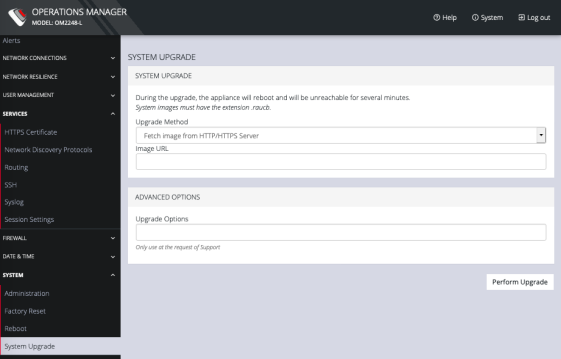
If upgrading via Fetch image from HTTP/HTTPS Server:
-
Enter the URL for the system image in the Image URL text-entry field.
-
Click Perform Upgrade.
Or if upgrading via Upload Image:
-
Click the Choose file button.
-
Navigate to the directory containing the file.
-
Select the file and press Return.
-
Click Perform Upgrade.
Note: The Advanced Options section should only be used if a system upgrade is being performed as part of an Opengear Support call.
Once the upgrade has started, the System Upgrade page displays feedback as to the state of the process.